CALL US

800-634-5178

Author: Adam Noyes

Tips for Teaching with Video for the First Time

By Adam Noyes 0 Comment April 15, 2020

Many teachers and students are experiencing virtual learning for the first time. This is truly a trying endeavor for everyone involved. Luckily, streamingmedia.com has a great guide, with tips for teaching online for the first time. Check out some highlights from that article, below.

Telestream Reseller Webinar Covering Wirecast, Wirecast Gear & ScreenFlow

By Adam Noyes 0 Comment April 15, 2020

We invite you to join Telestream for an informative Channel Sales Meeting – virtual-style. Our channel program and product line leaders will be on hand to show you the highlights and value propositions for the Telestream product portfolio. Included in the agenda will be a brief overview and how-to-sell tips for Wirecast, Wirecast Gear and ScreenFlow.

The Atomos Shogun 7 is the Ultimate Filmmaking Accessory

By Adam Noyes 0 Comment April 15, 2020

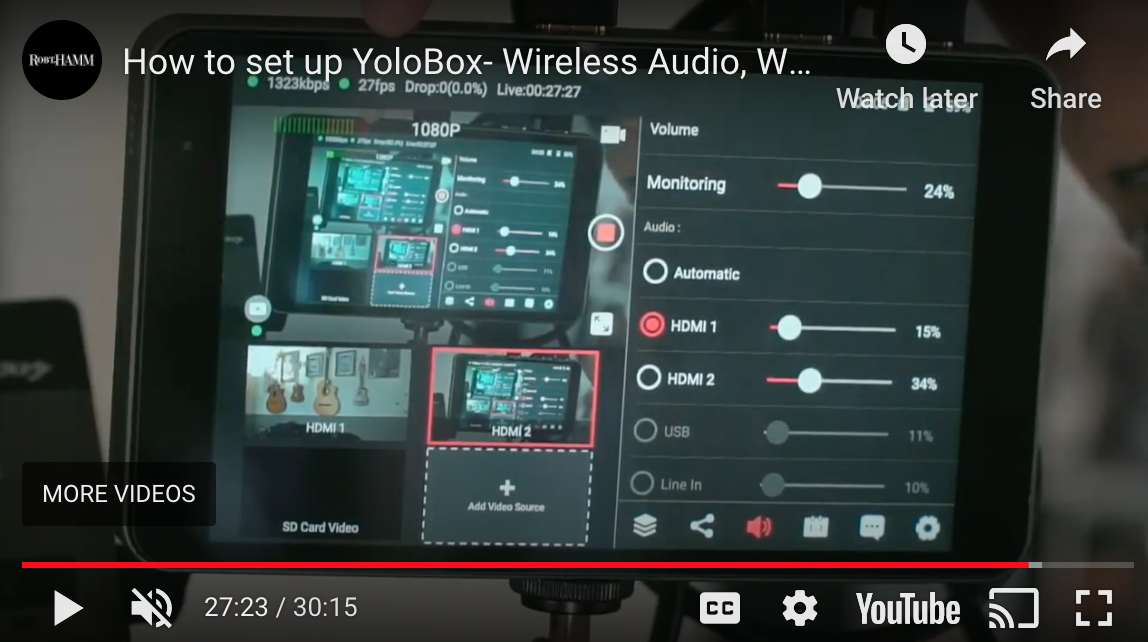
The Atomos Shogun 7 is one of the most exciting monitors on the market today. It has monitor, recording and switching capability, effectively making it a great device for your multi camera production.

G-Tech External SSD Roundup Review

By Adam Noyes 0 Comment April 14, 2020

t’s been a little while since we’ve seen their gear in the lab, but we’ve known the G-Technology team at this point for a decade or longer. G-Technology is a division of Western Digital, and is known for their RAID enclosures, hard drives and SSDs designed specifically for the discerning creative professional. As needs change and performance becomes paramount for this audience, G-Technology SSDs stand out from the crowd, delivering industry leading solutions for use in both the field and the office. In this joint review, we take a look at three of the leading G-Technology SSD solutions, quickly catching up on this portion of the WD portfolio designed to address the needs of the high-end content creator audience.

Wirecast Broadcasting into Zoom: Workflow Guide

By Adam Noyes 0 Comment April 14, 2020

Wirecast into Zoom
1. Launch Wirecast (or your live video production and virtual camera app) and start your virtual camera output. Make sure all the graphics, titles, cameras, images, and sound clips you need are loaded.
2. In Zoom, select the Wirecast virtual camera as your camera. Now whatever you “go live” with in Wirecast will be in your Zoom camera.
3. Professionally “produce” your Zoom session from Wirecast. A Zoom Assistant (ZA) is recommended to handle this for you, if you are the host in Zoom.

Epiphan: Guide to Telemedicine for Healthcare

By Adam Noyes 0 Comment April 13, 2020

One of the most recent updates to this webinar series covers a guide to Telemedicine with Epiphan. The video is extremely informative and shares valuable information. Check it out, below.

The Ins and Outs of Streaming on YouTube Live

By Adam Noyes 0 Comment April 13, 2020

Premiumbeat.com recently posted a great article detailing the ins and outs of streaming to YouTube. YouTube streaming can be difficult to jump into at a high quality, especially for those […]

OK, Zoomer! How to Become a Videoconferencing Power User

By Adam Noyes 0 Comment April 10, 2020

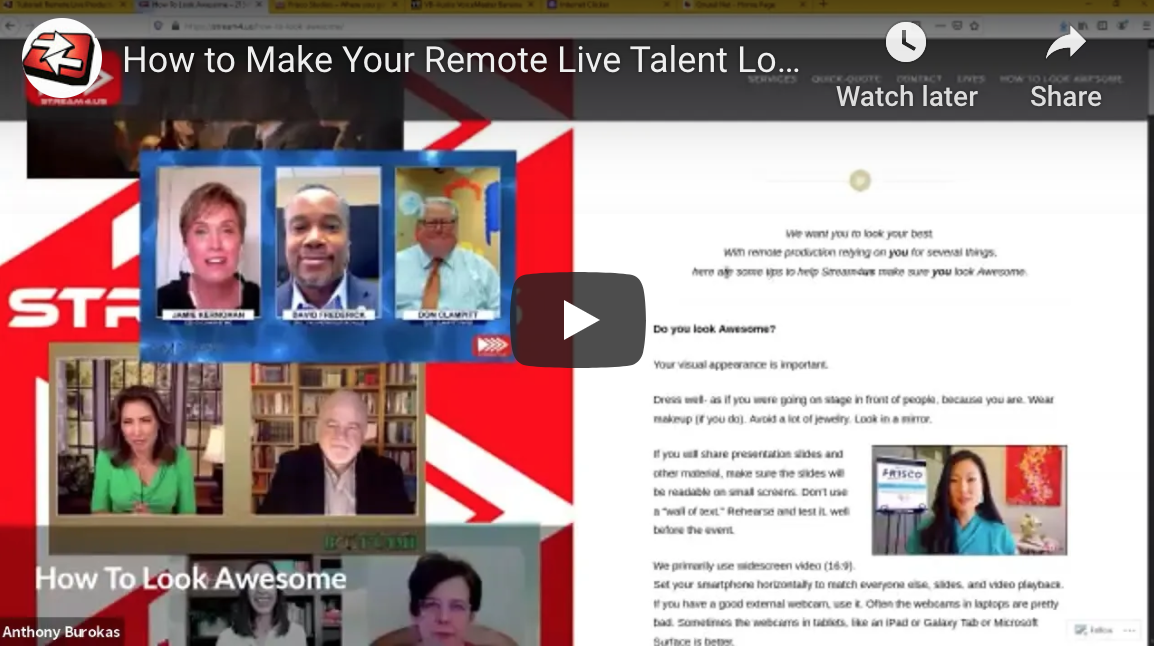
AN UPSIDE OF being quarantined during a global pandemic is that your isolation doesn’t have to be so … lonely. Amid the chaos of the coronavirus, the magic of videoconferencing technology (and, most popularly, Zoom) has allowed unprecedented numbers of people to connect virtually.

Adobe Distance Learning Resources

By Adam Noyes 0 Comment April 9, 2020

Whether your school routinely supports distance learning or is facing unexpected closures, we’ve assembled these resources and learning opportunities to help educators engage remote students through online learning.

What to Consider When Building a PC for Video Editing

By Adam Noyes 0 Comment April 8, 2020

For editors, there is probably no worse moment than when you tap the spacebar to playback your work and the video begins stuttering. Now to figure out what features or settings you can change to make the NLE at least usable for the next few moments. After these moments, you might find yourself considering building or upgrading your PC to ensure better performance in Adobe Premiere Pro or After Effects.