
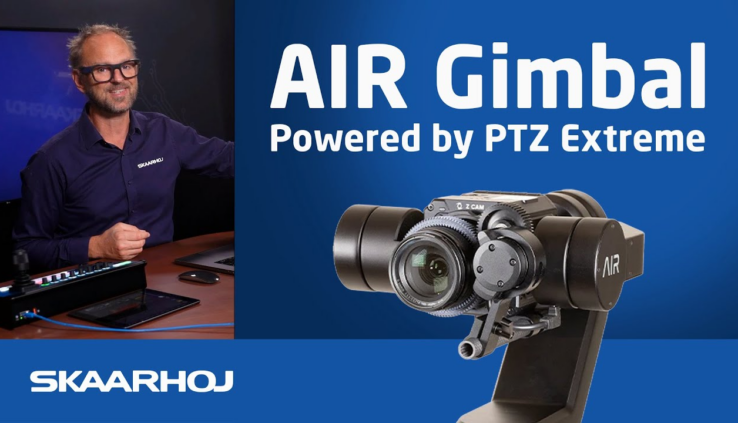
How SKAARHOJ PTZ Extreme Integrates AIR Gimbal Control into Broadcast Workflows
By Stephanie R
This demonstration showed how SKAARHOJ PTZ Extreme unified AIR gimbal control within a professional broadcast ecosystem. Instead of relying on touch-based control, operators gained tactile, frame-accurate control over camera movement, optics, and exposure. Custom Reactor layouts and engineering features simplified complex setups while enabling consistent, repeatable operation. For productions looking to blend gimbal movement with traditional PTZ workflows, the setup delivered a seamless, broadcast-ready solution. Be sure to check out the setup in action:
Learn more about Advanced Image Robotics here
Read the full transcript below:
Today you’ll finally see tactile control of your air gimbal. These gimbals are high quality, very precise, but until now you’ve been stuck controlling them with an iPad. Not anymore. Skyo’s PTC controllers support air paired with a CC cam on top. Essentially, it’s a customuilt PTC camera, combining the best of both devices. And in the true Skyway style, you can mix it seamlessly with any other brand of camera, plus switches, routers, and more, all from the same panel. So, this is the wonderful Jimble from Air with a CC cam on top. I’m just showing you the device from the side here because now I’m going to press a recall button for preset. And this is the back side of it, which you’ll see from now on. So we’ll focus a little bit on how this operates and how the iPad you see now here in the picture can be used to to control it. So basically in a situation like you have been used to you would be dragging across the iPad screen but actually I have control on the PVC extreme right now. So you see I’m able to zoom. I’m also able to tilt a little bit and you saw me panning a moment ago because I have control. That’s what this button says. It says take yield. And if I press it it’s now yellow. It means I do not have control anymore with the joystick but I have on the iPad instead as you have been used to so far. So basically one of these devices will control the gimbal and the camera at a time when it comes to the pan, tilt and zoom axis. Presets are managed on a PDC extreme from these buttons. So if I press the first one then you see it go into the first preset that we started out with. If I press the second one it has been coded to this preset and the third one it goes to this one. It would be possible quite easily for me to just pan over to the camera here on the side. Zoom out a little bit like that and make this a new preset that I’ll store on say number four by pressing and holding it turns green. The preset is stored. If I go to three, I’m there. If I go to four, it goes over to the the Tesla Roadster here. And that is how easy it is to actually store a new preset with the PDC Extreme. Super super easy. Uh, another thing that I want to highlight is our ability to uh, manage focus here on the uh, roller wheel on on the PDC extreme. So, uh, that’s a real nice uh, thing and very very smooth focus on the uh, uh, CC cam air uh, gimble combo here. You can uh, in fact follow this. So, if you look on on the iPad, you see that the number for focus is is shown here on the iPad. And uh I may even be able to actually manipulate the focus parallel to the PC extreme. So there are certain things that both of the controllers can actually access simultaneously. It depends on where the parameter is, but such as focus can be done both places. There’s also iris control. So we have um and ISO by the way. So we have ISO control here. You see the parameter on the PTC extreme right there. So I can control it from here or I can also Oh, I cannot. Okay. Okay. So, that would be one of those that are not um multicontrolled in that way, but you see it’s following along. So, you have a quite nice reflection of what the changes are that you are making. This is the iris knob on the PT extreme. So, this is the most open Iris that we are going to get um on the control panel um or on the camera of today. And um those are some of the features that PDC Extreme gives you right at your lefthand fingertips basically. focus, iris, and zoom on the zoom rugger. Speaking about zoom, which is available both on the joystick and also on the zoom rugger here, it is something that we can adjust in the menu. So, PDC Extreme has a menu structure here where we can go through some parameters. We’ll explore in a moment. And in this menu, the one called air, we have something specific for the gimbal. So, uh actually, if you uh kind of notice then in this menu, white balance, that’s not on the gimbal, that’s on the camera. We’ll get back to that. But in the menu here, the uh settings that you find are for the gimbal. And uh we have the zoom rocker and the rotation. And they are currently both assigned to zooming. So maybe if I change this one for the rotation of the joystick over to air roll. Now with the zoom rocker, I will be zooming. You can see it on the picture. So I’m zooming in, zooming out. But if I now turn the joystick, I’m rolling the gimbal, which is like a fourth axis you normally don’t find on PDC cameras generally. So this is something that you just go and set up inside of the menu on the PDC Extreme any way you want it to do to be. So um the CC cam on top it has u it has its the zoom on the lens is actually controlled from the uh the air because there’s like a lens gear while the focus is inside of the camera and if we um look at those camera parameters that I promised you a moment ago then they are generally spread out on a number of menu items here. So in the home menu, this is where you are invited to actually customize and place the parameters that you would like to have there because many of them are also find deeper inside. You’ll see stuff like white balance and white balance priority. That’s also find in the white found in the white balance menu. But we assume that you want those on the home screen. This is why they are replicated there. While many other parameters on the left side are actually from other menus. In the exposure menu, you have the iris. Um, this would be a duplicate of the iris knob here on the side, but it’s just broken out here. Now, you have a display that shows the number of it. We also have a um another parameter here for um basically offset of the exposure. We have ISO is shown and and that is being shown uh in this um menu. I think actually I would expect it to be slightly different. Oh, it’s a max ISO. Sorry. Um, we have a shutter speed uh or angle. So, we can change that around. And then we have metering mode of the camera, etc. I won’t go through all of these, but going on to white balance. Then we have different white balance settings. Very familiar settings for white balance we find in this menu. So, that’s great. Okay, let’s just go back to auto because that’s a nice place to be for a quick demo like this. We have lots, we have lens parameters we can set. We can move on to the system menu where we have a number of settings that we can also work with. And then we have these specific air settings that are mapped out onto these eight encoders. Again, nothing that we can go through with if um in in any way today. And then we have a menu called test, which is basically something that I have been adding prior to this demonstration just to show that we can also add our own menu items. And that brings me over to the UI of Reactor because Reactor is um the application running on the PVC extreme. This is a self-contained panel. It does not depend on any computer anywhere. So when you buy a Sky product, an essential selling point is that you are basically free. You just have this device. It’s going to talk to both the camera and the Jimble and nothing else is necessary. In this UI, you see it the devices we are connected to on this IP address and this IP address is the camera and the gimbal. Now technically there is only a single Ethernet cable going into the Jimble because air has integrated CC cam very tightly so that the network connection to the CC cam goes through the Jimble. Thank you guys. In many other cases when you have a combo device with Scaroy you basically uh have those separate. They don’t know of each other in many other cases. This is super elegant. So, thank you. But it’s the same for many other devices that if you combine a PT head and a camera on top, you’ll have two devices which are now made into one and mapped down onto the controller. And to the user, they won’t know how exactly this has been combined together. In the configuration tab, you can now change the controllers settings of various sorts. This is where you see the um let’s go to the home menu again. uh real quick. So if I go to the home menu here, you see the settings in the home menu. And let’s say that I want to change like this parameter tint. I don’t want that. So I’ll just be clicking on it. And if I’m in auto mode, so in this menu, if you choose auto mode, it will automatically select the uh behavior that is mapped down onto this encoder in its current mode. You can see if I go to exposure and I click now, I get to something else. So it’s very intuitive in a sense that you can just pick whatever you want and whatever you see here you click it and you get to that parameter and now we can change the behavior to something else. So I want to see if we can change over to um let’s let’s say a focus for instance I want to see the focus uh position. So focus manual focus absolute that sounds like a nice parameter. It’s coming out of the CC cam. But you see me searching for focus gives me uh different options here because um the gimal can also manage focus in certain cases. But I know this this is being done with the camera in this particular case. So I’m going to pick it right there. And did you notice what happens? And what you see on the panel right now that is the focus position. So for an operator who is uh who knows what is the um particular um number that has to the absolute focus position that I need to reach to stay sharply in focus for something. You now have it in a display. It is mapped down there on the home menu. Okay, I want to change something else. Um I can do that. So what would that be? I might want to do uh oneshot focus center. And now actually if I’m pressing this one I’ll achieve the same as what would usually be mapped to a button. But if I’m pressing the encoder I’m activating that. So this is how you can customize inside of reactor to change anything that you see on the controller. You can change that but you can also add layers. So we have something called a user section. In the user section you can overlay things. So instead of changing which has its own like approach to things you can also add a new page my page let’s call it that my page if I create my page and if I go to my page you’ll see that the controller is basically blanking out and going between background my page background my page now on my page I can click on anything here let’s say it’s this button we can find something that we want to put down on this one Let’s make it this one. So, a toggle for a function, whatever that is, is now found on my page. And I’m sure you can imagine how you can build up layers of stuff on top. It doesn’t have to be for these devices. It could be any other device you add out here. And that’s how we integrate at Skyhoy on your panels. So after working with it and imagining what is it that you want, you have a self-contained panel that gives you exactly the control experience that you or your users are looking for. Let’s wrap this video up by showing you the engineering menu. That’s a concept you find on many SkyO controllers. It’s a sort sort of hidden gateway where you press and hold a button that only you know. It really is not meant for everybody and this is why we have hidden it away a little bit. But on the PVC Extreme, it is right there on the lower right corner button. You press the upper edge, hold it for a second and you get into the engineering menu. It will tell you wonderful things like the system IP very necessary and useful for from times. You can also adjust settings for the uh dimming of the display, sleep, other things. But we have pan direction, tilt direction, zoom direction, focus direction. So if I invert these, what it means is that my joystick as I’m now going Oh, let me see. Maybe I need to exit here. Yes. Okay. So now I’m panning in this direction. When I’m pressing left, I’m actually going right. You can see it on the screen. Going right, I’m now panning left. And uh did I do it with tilt as well? So, if I am going up, you see I’m going down. Especially the tilt axis is often one that people want to invert. Uh, of course, if you place it upside down, you might also want, but many PDC cameras, they have that built in themselves. So, that’s not as necessary. Let’s just go back with these. I want to show you trace, which is a unique feature Sky has added. So, if you enable trace and we exit, what we can do is to record the speed steps we sent to the to the device. So, uh, I want to make a little trace here. So, um, let’s just re real quick, uh, recall one of our presets. And then I want to create a trace here on preset number five. So, I press and hold for 3 seconds. And when I do so, it is now ready to record. And notice that the display has a timer and it says zero steps. But as I’m now panning to the side, you’ll see that the timer starts and the steps are increasing. And I’m now and zooming out a little bit. Moving over to this position. Okay. And after standing still here for a short while, I’ll just go a little bit to the right and zoom in and Okay. I’ll just stop here and I press stop. So basically we have recorded a trace now. So if I press it, it’s arming itself, meaning it’s going back to the preset from where it started. And then if I press it, it’s going to play back the steps that I just recorded basically. So we’ll see that it’s panning over. It is zooming out a little bit and it is framing the um Yoda figure and also the car. And then after waiting shortly, it’s now going to zoom in onto the car. So this is something that is uniquely built into SkyO controllers. You find it on PDC Extreme, you find it on uh PDC Fly, PDC Pro. Basically, all our uh or most of our controllers have it built in as something that you can enable. And the precision of it depends a little bit on how um a PVC head like this are replaying those speed instructions that we are sending to it. So, you may also take a few tries to do it. Now, let’s just try to play it back once again. And I also don’t know how precise this iPad screen is for showing us the um the video, but it’s uh finding this framing. All right. And then it’s waiting a little bit. And then it is zooming in a little bit and just panning over onto the car. All right. There we go guys. This is the uh integration with air and the cam on top. We are super excited about this combo device which is unique in the sense that air and cam has this integration. We know that other cameras are also being uh looked at for the air gimal but uh it is specially supported in this case and uh one very unique thing obviously is the roll feature that gives you some creative uh freedom right there. The best of all is that with your PDC extreme you have invested in a controller that will control this one and basically any other PDC camera you can come across. It will give you access to camera settings. So you have shading, you have the axis control all in the same box in the same ecosystem. And you can hook it up with switches so that you have tallies on your camera select buttons and all that wonderful stuff. Thanks for watching this video. I hope that it was useful to you. And if you are looking for content of a similar sort about how to control your broadcast gear, then like and subscribe to this channel. You can follow us on Facebook, Instagram, and X. Subscribe to our newsletter. You can also reach out to a human being in our sales and support team if you have some questions. We will be super happy to help you.