
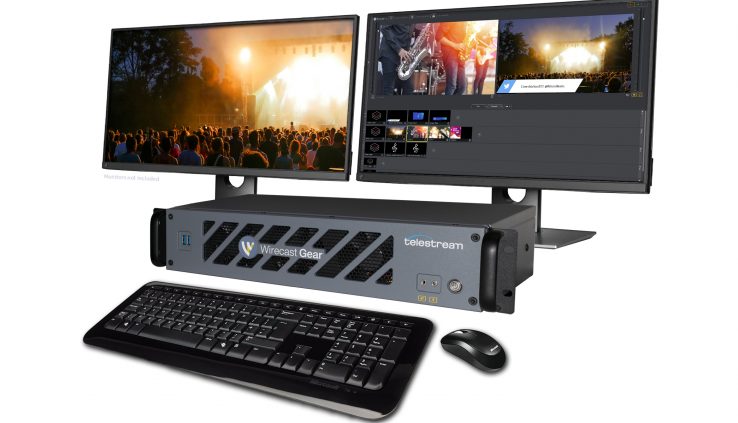
Review: Wirecast Gear 420
By Adam Noyes
Telestream’s Wirecast Gear systems are for live-event producers who are sold on Wirecast and want a stable, high performance system to run it on. My recent tests of a Wirecast Gear 420 system shows that it quite aptly meets this definition. Gear comes in three basic configurations, though you can customize them as you like. According to the Intel product page, the Intel Xeon E-2176G processor has six 3.70 GHz CPUs and hyperthreading for 12 logical.
Figure 1 (below) shows how the configurations differ in graphics and I/O. Buy the 310 for four HDMI inputs; the Gear 320 for four HD-SDI inputs; and the 420 for five HD-SDI inputs, baseband SDI output, and four integrated hardware encoders. All systems come with Wirecast Pro, and this itself comes with NewBlue Titler Live, which supplies animated 3D titles, scoreboards, and other graphics and Facebook comments, curation, and display.
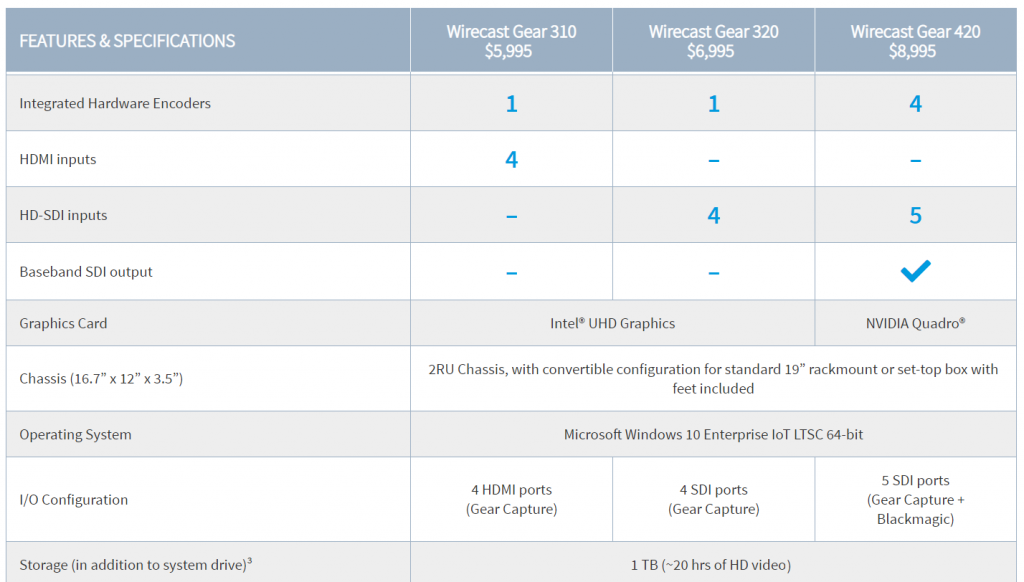
All three models come in a rackmountable 2RU chassis that can fit in a standard 19″ rackmount or run as a desktop unit with rubber feet included. The 420 I tested has the NVIDIA Quadro P220 graphics card, which includes four DisplayPort outputs and the four integrated hardware encoders referred to in Figure 2. As you’ll see, these really come in handy when outputting multiple streams of H.264-encoded output. The 420 also has one HD-SDI program out for confidence monitoring or to send to an external encoder, a workflow that some live-event producers favor over encoding in their mixer.
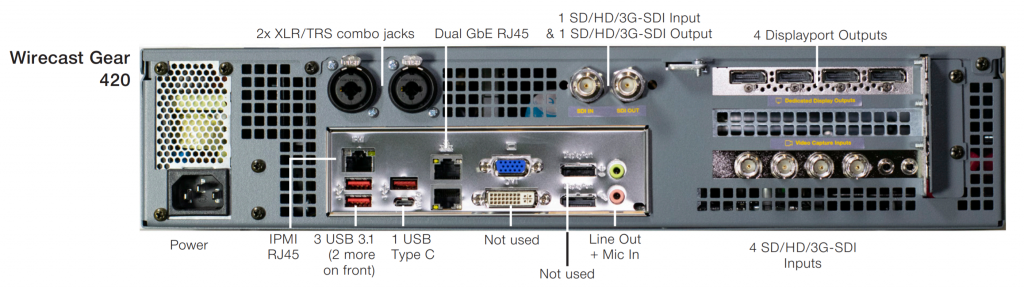
The connectors on the 420 are shown in Figure 2 (below). As you can see, the four DisplayPorts on the 420 are, in fact, DisplayPort outputs, and Telestream includes a single DisplayPort to DVI connector in the box to get you up and running. You see the four HD-SDI inputs on the right, the single HDI input/output up top, and the two XLR/TRS combo jacks that are available on all three units. The DVI and VGA DisplayPorts marked “Not used” in Figure 3 are the two outputs for the 310 and 320, and the pink-and-green Line Out and Mic In are available on all three units, complemented by the same ports on the front of the unit.
Testing the Gear
To test the system, I created multiple projects with multiple outputs and measured CPU utilization during these operations. Though there is no magic number, once CPU utilization gets beyond 60%–80% or so, you start to worry about dropped frames, interruptions, and outright software failures. Although I was testing the 420, the other two systems share the same CPU, RAM configuration, and operating system, so performance should be similar except when outputting multiple file outputs using hardware-based encoding.
Specifically, the 420 has four NVIDIA hardware encoders using the GPUs on the graphics card to convert to H.264 output for storage or transmission to a live-streaming service provider, preserving cycles for the system Xeon CPU. The other two units have one Quick Sync integrated hardware encoder that uses the Intel graphics chip.
Operationally, you choose the hardware encoder in Wirecast’s Output Setting screen, where you configure your encodings for your live-streaming service provider or archive recording. This screen offers multiple presets that list the codec used in the preset name. On the 420, there are three H.264 codecs to choose from: one from MainConcept, one that’s the open-source x264 codec, and the hardwareaccelerated NVIDIA codec. Note that the NVIDIA codec wasn’t used in the default encoding preset, so you’ll have to choose an NVIDIA preset to activate hardware-based transcoding.
How does the NVIDIA and Intel Quick Sync output quality compare to x264? At Streaming Media West in 2019, I compared NVIDIA and Quick Sync to x264 quality (but not MainConcept). This was a live-transcoding use case (as opposed to offline video-on-demand [VOD] encoding), so the results are very applicable. As you can see in the rate distortion curve shown in Figure 3, below (higher is better), the NVIDIA codec edged the Intel Quick Sync codec and the x264 codec using the medium preset, while x264 configured to the often-used veryfast preset trailed considerably. Though both the Intel and NVIDIA hardware-accelerated codecs came out of the gate many years ago with quality-related issues, they’ve definitely reversed that deficit and now produce both quality and encoding efficiency that most software-based codecs can’t match.

The fact that the 420 includes four hardware-based transcoders means that you can use these transcoders to encode video for your live-streaming service provider without impacting general CPU usage. So, you probably won’t have to buy a separate encoder for this task, thereby saving a few hundred dollars and eliminating one more piece of gear you have to pack when you’re hitting the road to produce an off-site live event.
Note that you can’t use any of the hardware encoders to produce ISO recordings of the input videos, which are all stored in QuickTime format using the Motion JPEG codec. This encoder has four quality settings—low, high, medium, and best—the last of which totaled about 70Mbps and delivered very good quality. If you’re storing ISO files, it’s likely for future editing or encoding, so Motion JPEG is probably a better choice anyway and is fairly efficient to produce without hardware acceleration.
Project 1: Distance Learning
The first project was a distance-learning scenario, where I combined a PowerPoint presentation with a shot of the instructor and audio. To produce this, I sent the PowerPoint slides from a Mac on the same network as the Gear system using Wirecast Desktop Presenter, a free Telestream application that is available for Mac and Windows computers.
To operate Desktop Presenter, you run it on the system hosting the application that you want to share (in this case, the Mac). Then you add the screen into the Wirecast project by typing its IP address into Wirecast. Telestream makes this simple by displaying the IP address in the Presenter app on the remote system. According to my Telestream contact, Desktop Presenter must be on the same LAN to work out of the box. While advanced routing from external networks may be possible, it’s not a workflow Telestream officially supports.
Figure 5 (below) shows Wirecast on the upper left, with a tiny preview window in the middle and the larger Live screen on the right. I’m sending the stream to YouTube Live, which is shown on the upper right. Performance Monitor on the lower left shows CPU utilization at around 10%, despite sending a 4Mbps stream to YouTube.
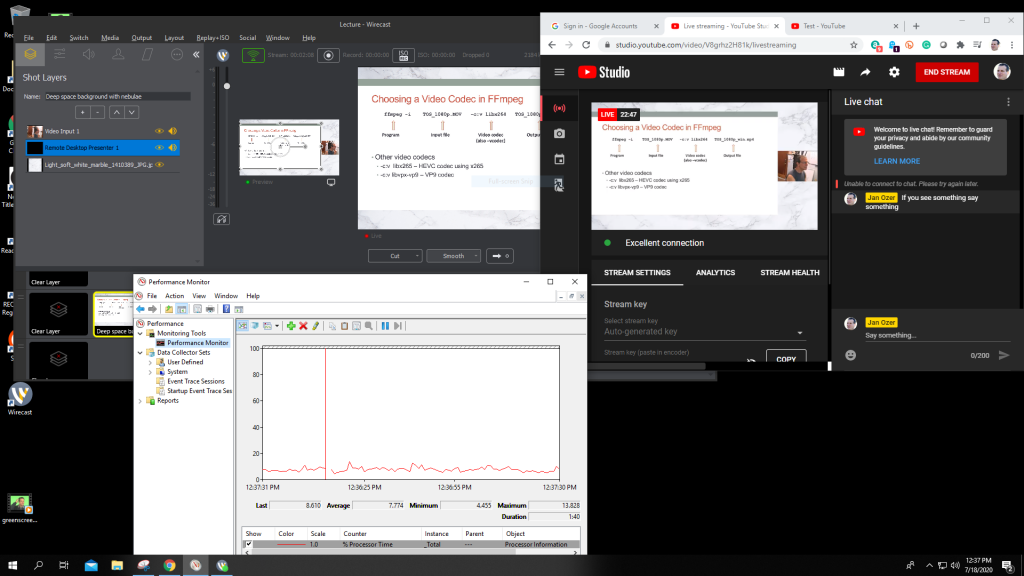
For those unfamiliar with Wirecast, I built the shot used in the video in the Shot Layers dialog shown on the upper left. There, you see three layers: the white background layer on the bottom, the black Desktop Presenter window coming in from the Mac, and the live video coming in through HD-SDI input 1. Wirecast provides resizing, positioning, and cropping tools to build the composite shot, along with color correction, rotation, and other adjustments.
Overall, this is a pretty simple project, and Gear handled it with aplomb. Note that when producing this product, the Gear fans remained pretty quiet, though this changed for more demanding projects.
Project 2: Remote Interviews
In the second project, I put Wirecast’s remote production capabilities to the test, building a three-person interview that I streamed to Facebook Live and storing a 10Mbps 1080p version to disk.
As before, you see the layers on the upper left in Figure 6 (below). The bottom layer is a video background for the interview that I downloaded from YouTube. The image on the left is the local video from input 1. The center image came from my iPhone via Telestream Wirecast Go, a free app you can use to transmit audio and video from an iPhone to Wirecast. There is no Android version, though there are likely other ways to accomplish this, including NDI. The image on the right came in via Wirecast’s Rendevous feature and should work with any browser-based system.
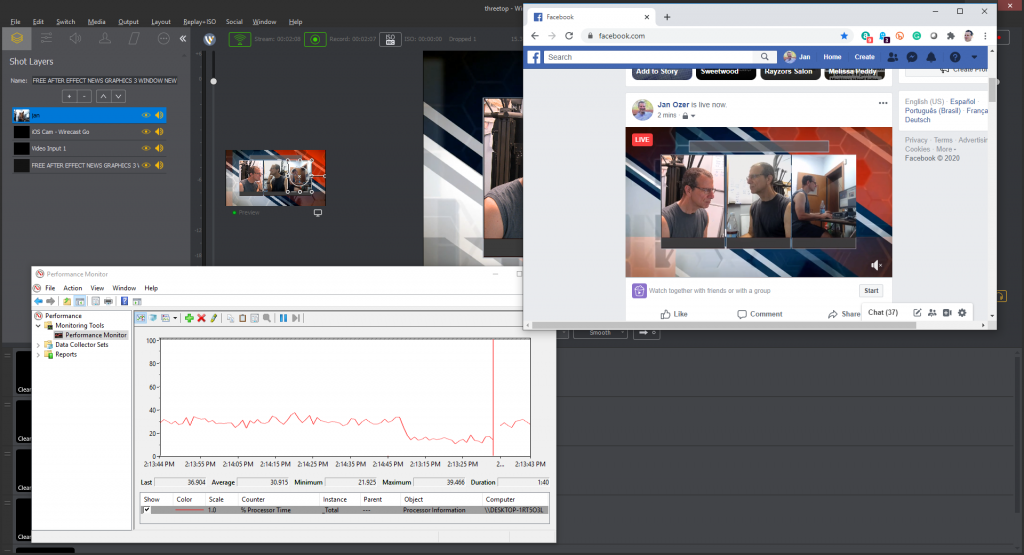
While broadcasting and storing the program stream to disk, CPU operation came in at around 30%, which was surprisingly high for me. I also noticed substantial fan noise for the first time, which may disqualify Gear for use in a close-in quiet environment. It’s not blaring and would work fine from the back of the room at a training session, seminar, speech, or concert, but if you’re looking for a system to use in a small conference room, it might be a problem.
In Performance Monitor (in the lower left in Figure 6), you see the CPU utilization drop from around 30 to under 20 at around 2:14:45. That occurred when I stopped the video playing on the bottom layer of the background video. CPU utilization wasn’t a problem with this project, but if you have an otherwise CPUheavy production, you may want to use a static background or at least make sure the video is in a production-friendly format like Motion JPEG-encoded QuickTime as opposed to an H.264-encoded MP4 file.
I asked Telestream about fan noise and was told, “We had the new generation of Gear thermal tested by a third party, which resulted in custom air-ducting internally to both baffle sounds and optimize the airflow pathways. This extends the unit’s operating temperature range so it can be used outdoors at sporting events, as well as indoors in climate-controlled environments. Compared to an Apple laptop or other PC, the fans of those machines at idle are a little more quiet. Under load, they are loud enough to be picked up by a quality microphone as well.”
The bottom line is that CPU utilization generates heat, and desktop or rackmounted units are much easier to cool than notebooks with minimal fan noise because they are easier to ventilate. More complex projects will probably generate noise on any PC-based system.
The Kitchen Sink Project
The final project (Figure 7, below) included video camera output routed through an Osprey SDARD-4 Distribution Amplifier to create four HD-SDI outputs, each with its own text title. These are the four videos on the left and right you can see in both the YouTube Live and Facebook Live video windows.
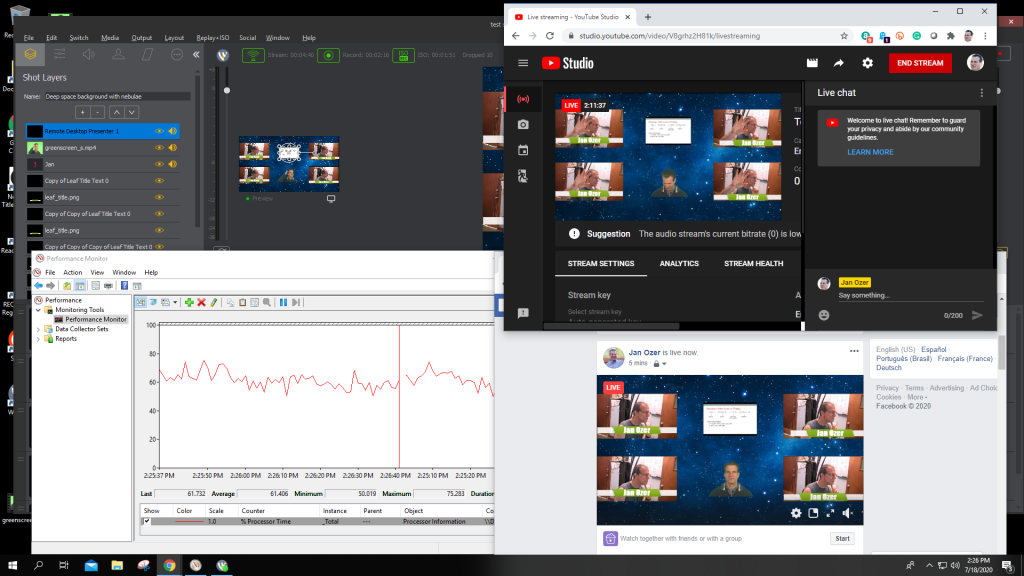
In the upper middle is the PowerPoint video coming in from the Mac, while the bottom middle is a VOD file that I green screened into the production using Wirecast’s compositing feature. All told, this project had 17 layers, some of which you can see in the Shot Layers window on the upper left.
I broadcast this production to both Facebook and YouTube and saved all four cameras as ISO streams and the live output to a 10Mbps archive file. This pushed CPU utilization to a peak of around 80% and caused 10 dropped frames, all at the start of the broadcast and storage process. This is a bit higher than I’d like to go, though the average of 60%–65% should be fine.
In 4 days of testing with multiple several hour productions, Gear proved stable and responsive even when pushed to the edge. If I were producing mission-critical live events with Wirecast, I would strongly consider the Gear system that matched my inputs and production requirements.